

Microsoft offers a free lab environment for everyone to use. I’ve used this kit extensively throughout my IT career.
The free lab kit can be download from here: Windows 11 and Office 365 Deployment Lab Kit | Microsoft Evaluation Center
Requirements
To use the lab kit, your PC needs the following specifications
- Hyper-V role installed
- Administrative rights on the device
- 150 GB of free disk space (300 GB recommended)
- High-throughput disk subsystem
- 16 GB of available memory (32 GB recommended)
- High-end processor for faster processing
What you get
After downloading and installing the lab kit, you’ll have the following VMs in your Hyper-V environment
- (Server) GW-01: Gateway server to create Internet connectivity for the other servers
- (Server) DC-01: Fully configured Domain Controller with DNS, DHCP, and ADCS
- (Server) CM-01: Fully configured ConfigMgr server with WDS, WSUS, and SQL Server 2022
- (Client) Client-1: Windows 11, version 24H2 Domain Joined device
- (Client) Client-2: Windows 11, version 24H2 Domain Joined device
- (Client) Client-3: Windows 11, version 24H2 Workgroup device
- (Client) Client-4: Windows 11, version 24H2 Workgroup device
Pre-Installation Steps
Before installing the environment, you need to install Hyper-V on your PC and create an External Virtual Switch. Here’s how to configure External Switch:
- Launch the Hyper-V Console and under Actions, click Virtual Switch Manager.
- With New virtual network switch selected, choose External and click Create Virtual Switch.
- Enter a name, for example, “External 2”. Under External network, select the network adapter providing Internet access to the Hyper-V Host and click Apply.
- If prompted, click Yes on the Apply Networking Changes message box.
- Click OK and close the Hyper-V Console.
Installation Steps
The lab kit takes only 30 minutes to install and is perfect for hands-on learning, especially when preparing for a Microsoft certification. It’s a great resource to understand how an on-premise environment communicates with Entra ID.
- Open the following website Windows 11 and Office 365 Deployment Lab Kit | Microsoft Evaluation Center
- Click on Lab Environment > to download the Lab Kit
- The setup files are 21 GB so it will take some time to download
- Once downloaded extract the setup files from the .zip folder (Can take 40 min)
- Click on the setup.exe file within the Win11_24H2_Lab_12.4 folder
- Click Next on the Welcome window
- Click Next on the License window
- Click Next on the Network window
- Click Next on the Provision window
- Now the lab kit is installing which will take 20-30 minutes
- Once its finished your Hyper-V will look like below.
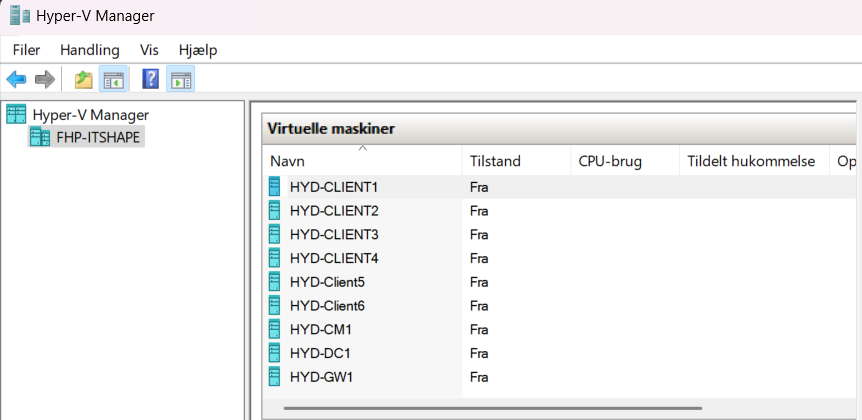
The Enterprise and domain administrator username and password is the one below.
Username: LabAdmin
Password: P@ssw0rd
Domain: corp.contoso.com
The Lab Kit also features a Lab Guide and and a Setup Guide that can be download here
Windows 11 and Office 365 Deployment Lab Kit | Microsoft Evaluation Center (Just click on Lab Guides > to download it)
Enjoy learning! 🚀