

Microsoft plans to retire the Application Impersonation permissions, which have been frequently used for mail migrations with MigrationWiz.
Instead BitTitan suggests customers to use an App Registration and API permissions to provide the necessary permissions to the tool.
Recently, I was in contact with a company that frequently performs small mail migrations using MigrationWiz from BitTitan. They asked if there is an easy way to create the necessary app registration and API permissions when preparing for the mail migration using MigrationWiz.
The specific steps that the company would like to automate is the ones found in this article: M365 Mailbox and Archive Migrations – Performing Migration using only API permissions – BitTitan Help Center more specifically:
Step One – Create a New Application Registration
Step Two – Assign the API Permissions and Grant Admin Consent
Step Three – Obtain the AppID and TenantID from the Application Registration
Step Four – Create a Client Secretns and Grant Admin Consent
So I created a Powershell script to do those exact steps, see the code below.
Once the Powershell scipt has run successfully the necessary information required in Step 3 and 4 is given in the consol (AppID, ClientSecret and TenantID)
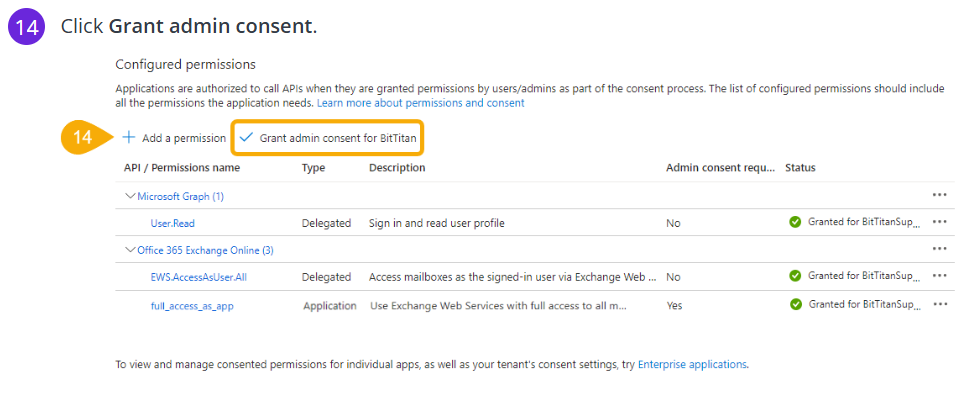
IMPORTANT: You still need to do task nr. 14 in Step Two (Grant admin consent.).
Powershell script
#######################################################################################
# Create Azure AD Application with Microsoft.Graph PowerShell to use with MigrationWiz
# 10.10.2024 V0.1 - Initial Version - Frederik Hauge-Pedersen
#######################################################################################

# Install Module
Install-Module Microsoft.Graph.Authentication
Install-Module Microsoft.Graph.Applications
Install-Module Microsoft.Graph.Identity.DirectoryManagement

# Import Module
Import-Module Microsoft.Graph.Authentication
Import-Module Microsoft.Graph.Applications
Import-Module Microsoft.Graph.Identity.DirectoryManagement

# Parameters
$AppName =  "MigrationWiz App"

# Connect to Microsoft Graph
Connect-MgGraph -Scopes "Application.Read.All","Application.ReadWrite.All","User.Read.All" -ErrorAction Stop

# Create App Registration
$App = New-MgApplication -DisplayName $AppName -IsFallbackPublicClient

# Create Client secret
$passwordCred = @{
	"displayName" = "ClientSecret"
	"endDateTime" = (Get-Date).AddMonths(+12)
}
$ClientSecret = Add-MgApplicationPassword -ApplicationId $App.ID -PasswordCredential $passwordCred

# Add Application API Permissions

# EWS.AccessAsUser.All - Application - 3b5f3d61-589b-4a3c-a359-5dd4b5ee5bd5
# full_access_as_app - Delegated - dc890d15-9560-4a4c-9b7f-a736ec74ec40

$params = @{
	RequiredResourceAccess = @(
		@{
			ResourceAppId = "00000002-0000-0ff1-ce00-000000000000"
			ResourceAccess = @(
				@{
					Id = "3b5f3d61-589b-4a3c-a359-5dd4b5ee5bd5"
					Type = "Scope"
				},
				@{
					Id = "dc890d15-9560-4a4c-9b7f-a736ec74ec40"
					Type = "Role"
				}
			)
		}
	)
}
Update-MgApplication -ApplicationId $App.ID -BodyParameter $params

Start-Sleep -Seconds 15

# Grant Admin Consent - Opens URL in Browser
$TenantName = $App.PublisherDomain
$AppID = $App.AppID
$URL = "https://login.microsoftonline.com/$TenantName/adminconsent?client_id=$AppID"
Start-Process $URL -Wait

# Get Tenant ID
$TenantID = (Get-MgOrganization).Id

#Show Info to use with MigrationWiz
Write-Host "Information to use in MigrationWiz"
Write-Host "Application ID: $($App.AppId)"
Write-Host "ClientSecret Value: $($ClientSecret.SecretText)"
Write-Host "Tenant ID: $TenantID"