

I was recently involved in a Modern Endpoint Management project for a large financial customer. This customer has a plan to move the management of their devices from on-prem managed (Hybrid join, SCCM & GPOs) to cloud managed (Cloud join, Microsoft Intune). My role in the project was to prepare the Intune environment.
In this article I will share with you some of the tools I used to analyze and move the customers existing GPO configurations to Microsoft Intune.
Tool nr. 1: Policy Analyzer
Tool nr. 2: Group Policy Analytics
REMINDER: These tools will assist with part of the process. However, there are many additional discussions that need to take place before migrating the policies. Some examples include:
- Intune Configurations Naming Convention
- How to structure the configuration profiles
- How to target the right devices with the policies
With that said, lets get into the tools and how to use them
How to use Policy Analyzer
Policy Analyzer is a great tool that can help you get a nice excel spreadsheet overview of all the Group Policies within an environment and the settings within each policy. It was originally developed as a tool to compare policies within an environment to the Microsoft Security Baseline.
Policy Analyzer is part of the Microsoft Security Compliance Toolkit 1.0.
To use the Policy Analyzer tool you’ll need to make a backup of the necessary GPOs that you would like to analyze. In our case we need to export the GPOs that are targeting our users Windows 10/11 devices.
Step 1 – Backup Policies
This can be done manually for each GPO by
- Open Group Policy Management consol
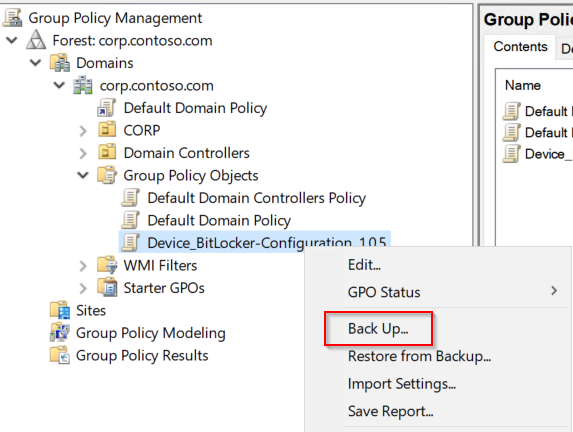
- Browse to the GPO you would like to get the .xml file from and click Back Up…
- Choose location
- Repeat for each GPO
The problem with the manually method is that
- It takes forever to do when having a lot GPOs
- The backup folders will be named by their UniqueID instead of their name
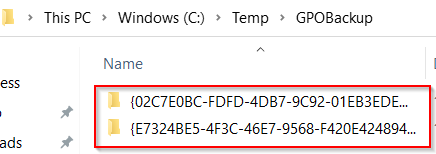
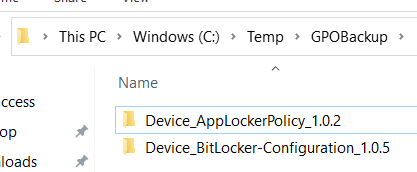
So instead I’ve created a script to backup the GPOs within a specific OU automatically and to rename the folder names
#Set Variables
$OU=”OU=COMPUTERS,OU=CORP,DC=corp,DC=contoso,DC=com”
$BackupFolder=”C:\temp\GPOBackup”

#Get all GPO’s linked to OU
(Get-ADOrganizationalUnit -Identity $OU).LinkedGroupPolicyObjects | % {
#Get GPO details
$GPOGUID=”{” + ($_.Split(“{“)[1]).Split(“}”)[0] + “}”
$GPOName=(Get-GPO -Guid $GPOGUID).DisplayName
Write-Verbose “Processing: $GPOName”
#Create backup folder based on GPO Name
New-Item -Path $BackupFolder\$GPOName -ItemType Directory -Verbose
#Backup GPO
Backup-GPO -Guid $GPOGUID -Path $BackupFolder\$GPOName -Verbose
}
Result:
Step 2 – Create PolicyRules file to use with Policy Analyzer
Now that we have the GPOs exported we need to import them into the Policy Analyzer tool
- Open the Policy Analyzer tool
- Click on the Add … button
- Click File and then Add files from GPO(s)…
- Browse to the root folder where you saved the GPOs from previous step (in my case (C:\temp\GPOBackup)
- Click Import…
Step 3 – Use Policy Analyzer to create a excel sheet with all the policies
- Open the Policy Analyzer tool
- Put a checkmark on the PolicyRules files you created in previous step
- Click View / Compare
- Click Export -> Export all data to Excel
Now you will have a nice excel sheet overview of all your GPOs that you can use to analyze your policies.

How to use Group Policy Analytics
Group Policy Analytics is a feature in Microsoft Intune designed to help organizations transition from traditional on-premises Group Policy Objects (GPOs) to modern cloud-based management. It allows you to import your existing GPOs, analyze their settings, and see how they can be mapped to Intune settings. This tool provides insights into which policies are supported in the cloud and helps streamline the migration process, making it easier to manage devices and policies in a cloud-first environment.
FYI: When you migrate a GPO to Intune using the Group Policy Analytics tool the policy type that gets created in Intune is of the Settings Catalog type.
Step 1 – Import policies
- Open the Group Policy Analytics panel within Intune
- Click Import
- Click to the blue folder icon
- Browse to the backup folder that you downloaded in Step 1 – Backup Policies step from previously
- Click on one of the GPO folders and select the gpreport.xml within the folder
- Click Next
- Click Create
- Repeat for the remaining GPOs
Now you should be able to see the policies within the tool.

Step 2 – Check Intune migration compatibility within a policy
Now you will be able to see how many of the settings within a policy that can be migrated to Intune using the tool
- From the Group Policy Analytics panel click on the percentage under MDM support on one of the policies
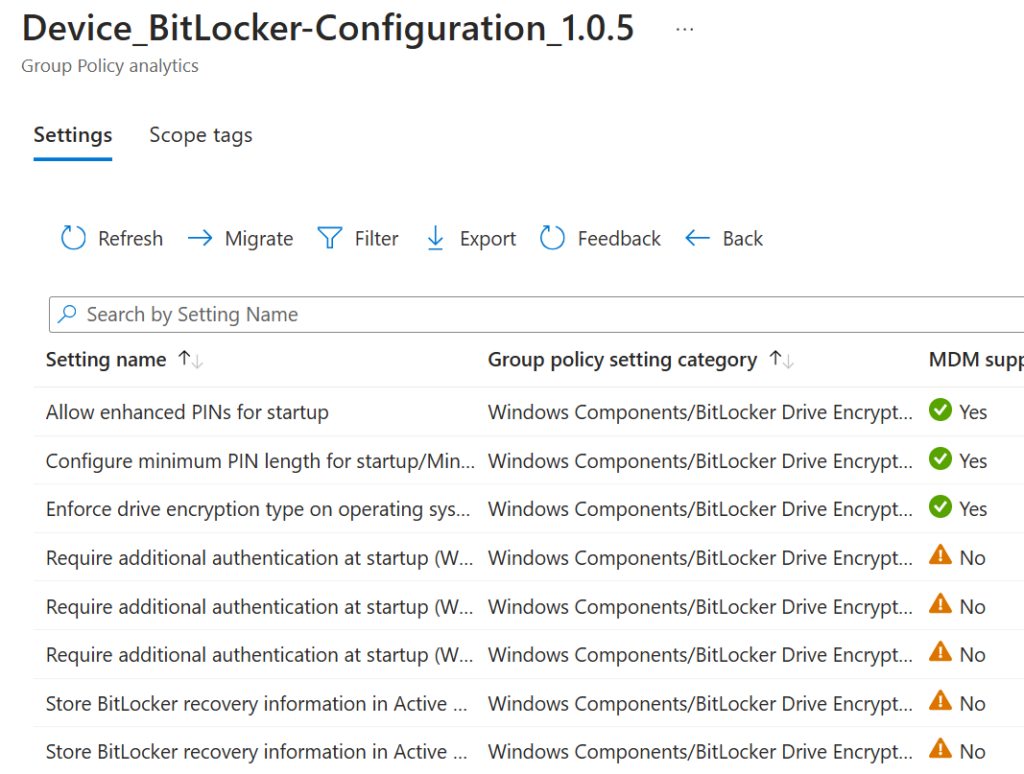
- From here you can see each of the settings within a policy and whether the tool is able to migrate the settings to Intune
If a setting has the MDM support a no that doesn’t necessarily mean that the setting can’t be configured in Intune, it just means that the Group Policy Analytics tool can’t migrate it. See example below.
Step 3 – Check Intune migration compatibility for all imported policies
Instead of checking each policy 1 by 1, it would be nicer to get a report that shows us the compatibility for all the policies. This can be achived by a report
- Open the reports view of the Group Policy Analytics
- Click Reports
- Click Group policy migration readiness
- Now you will get a complete overview of all the settings within each policy that you have imported to the tool
Step 4 – Migrate a policy to Intune
Follow the steps below when you are ready to migrate one of the polices to Intune
- Open the Group Policy Analytics panel
- Put a checkmark on one or more of the policies
- Click Migrate
- Select the settings within the policy that you would like to migrate and click Next
- In the configurations page click Next
- Give the Intune Configuration Profile a name and click Next
- On the Scope tags page click Next
- Click Next on the Assignments page (this can be done later)
Now you have successfully migrated a Group Policy to a Configuration Profile within Microsoft Intune.
This is the end of this blog post for now. If any other tools comes to mind then I will update it.
Peace out!